CSS
Early versions of HTML encouraged styling through elements and their attributes. For example:
This quickly became cumbersome as pages grew.
If you wanted every link on a page to be the same color, you'd need to set it on each individual <a>.
CSS offers a different approach, separating style from semantics. CSS, Cascading Style Sheets, is a declarative language to complement the structural language that is HTML.
In HTML we use class to define elements that should share some components of their presentation. We can also use id to name specific elements, allowing one-off styling.
As we discussed when we introduced semantic HTML it is best practice to write these classes to suggest some 'meaning':
Example
<div id="doc">
<div id="sidebar">
  <a href="#html">HTML</a>
  <a href="#css">CSS</a>
  <a href="#svg">SVG</a>
  <a href="#js">JavaScript</a>
</div>
<div id="post0">
  <h2 id="post0-title">Web Languages: CSS</h2>
  <div class="post0-author">James</div>
  <div class="post0-summary">This is a post that explains CSS.</div>
  <div class="post0-body">
    <a href="https://www.lipsum.com">Lorem Ipsum</a> is simply dummy text of the printing and typesetting industry. Lorem Ipsum has been the industry's standard dummy text ever since the 1500s, when an unknown printer took a galley of type and scrambled it to make a type specimen book. It has survived not only five centuries, but also the leap into electronic typesetting, remaining essentially unchanged. It was popularised in the 1960s with the release of Letraset sheets containing Lorem Ipsum passages, and more recently with desktop publishing software like Aldus PageMaker including versions of Lorem Ipsum.
  </div>
</div>
</div>
Web Languages: CSS
This is a post that explains CSS.
Lorem Ipsum is simply dummy text of the printing and typesetting industry. Lorem Ipsum has been the industry's standard dummy text ever since the 1500s, when an unknown printer took a galley of type and scrambled it to make a type specimen book. It has survived not only five centuries, but also the leap into electronic typesetting, remaining essentially unchanged. It was popularised in the 1960s with the release of Letraset sheets containing Lorem Ipsum passages, and more recently with desktop publishing software like Aldus PageMaker including versions of Lorem Ipsum.
But this does not display the way we want! Beyond a bit of default styling the browser gives us, everything sort of runs together.
We've given each item an id or class attribute so that we can reference these elements directly. This will allow us to apply our styles to specific elements.
CSS Syntax
CSS consists of a series of rules, which consist of a selector, as well as a number of declarations within {}.
Like HTML, whitespace is ignored. Often we put rules with single declarations on one line, and split multiple declarations by line.
CSS comments use /* C-style delimiters */.
For example:
/* this is a comment */
/* this colors all a tags green */
a { color: green; }
/* give all elements with class important a red background */
.important { background: red; }
Selectors
CSS selectors are a powerful tool for selecting a subset of elements on a page.
The simplest and most common selectors:
aorh2- Selects elements of a given type.#id-ref- Selects elements with a given ID. IDs should be unique per page and refer to unique elements..class-ref- Selects elements with a given class. Classes can be used to apply common styling to groups of similar elements.
These can also be combined with one another, or more advanced selectors.
Example
<style>
  /*
  CSS uses C-style comments.
  They start with /* and span multiple lines
  */

  /* ID selectors start with # */
  #doc {
    /*
      display: grid; is a relatively new piece of CSS that made writing CSS a lot better
      It allows our sidebar & main body to be split into a grid without needing to do
      calculations of margins/padding.
    */
    display: grid;
    /* this argument will be inherited, any element beneath this one that does not
        override font-family will use this choice.  This is the "cascade".
    */
    font-family: sans-serif;
    border: 1px dashed red;
  }
  #sidebar {
    /* colors are typically specified in hexadecimal triples #RRGGBB
       each digit ranges from 00 to ff (0-255) */
    background-color: #aaffaa;
    grid-column: 1;
    /* This specifies a buffer of 1 "m-width", being a wide letter.
       CSS values typically need units.

       They can be set in pixels, percentages, or a number of units
       like "em" that are based on the current font.

       Units Reference: https://www.w3.org/Style/Examples/007/units.en.html
    */
    /*padding-right: 1em;*/
    min-width: 100px;
  }
  /* this syntax selects all <a> elements that are inside a #sidebar */
  #sidebar a {
    /* We saw links are typically inline items,
       this converts these particular links to block items
       so they will stack for our menu. */
    display: block;
    min-width: 100px;
  }
  /* this applies a conditional state, when the link is hovered it will change appearance */
  #sidebar a:hover {
    background-color: blue;
    color: white;
  }
  #post { grid-column: 2; padding-left: 1em;}
  /* Leading dots indicate class selectors.
     These are intended to apply to multiple elements on the page.
  */
  .post-author { color: blue; float: right; }
  .post-summary { color: gray; font-style: italic; }
  .post-body { width: 80%; }
  .post-body a { color: green; text-decoration: underline dashed; }


</style>
<div id="doc">
<div id="sidebar">
  <a href="#html">HTML</a>
  <a href="#css">CSS</a>
  <a href="#svg">SVG</a>
  <a href="#js">JavaScript</a>
</div>
<div id="post">
  <h2 id="post-title">Web Languages: CSS</h2>
  <div class="post-author">James</div>
  <div class="post-summary">This is a post that explains CSS.</div>
  <div class="post-body">
    <a href="https://www.lipsum.com">Lorem Ipsum</a> is simply dummy text of the printing and typesetting industry. Lorem Ipsum has been the industry's standard dummy text ever since the 1500s, when an unknown printer took a galley of type and scrambled it to make a type specimen book. It has survived not only five centuries, but also the leap into electronic typesetting, remaining essentially unchanged. It was popularised in the 1960s with the release of Letraset sheets containing Lorem Ipsum passages, and more recently with desktop publishing software like Aldus PageMaker including versions of Lorem Ipsum.
  </div>
</div>
</div>
Web Languages: CSS
This is a post that explains CSS.
Lorem Ipsum is simply dummy text of the printing and typesetting industry. Lorem Ipsum has been the industry's standard dummy text ever since the 1500s, when an unknown printer took a galley of type and scrambled it to make a type specimen book. It has survived not only five centuries, but also the leap into electronic typesetting, remaining essentially unchanged. It was popularised in the 1960s with the release of Letraset sheets containing Lorem Ipsum passages, and more recently with desktop publishing software like Aldus PageMaker including versions of Lorem Ipsum.
Class vs ID
Class & ID can be confusing, especially since the browser won't throw an error if you apply the same ID to multiple elements. So what is the difference?
The primary difference is semantic, meant to imply intent. If an item appears multiple times on a page, it should definitely be a class. It is best practice to do so even if the item might appear multiple times on the page. In the above example, author's name/date only appears once—but I used a class imagining a future with multiple posts on a page, and the desire to have consistent styling.
Gaining this intuition can take time: in practice you may prefer classes most of the time and rarely go wrong.
In practice the difference will matter more when interacting with JavaScript (which also relies on IDs & CSS selectors).
There is one other reason to favor classes, which I'll demonstrate here:
Example
<!-- class lists are separated by spaces -->
<div class="gradient col-red">
  this is the content in gradient red
</div>
<div class="big col-red">
  this is the content in big red
</div>
<div class="gradient big">
  this is the content in gradient big
</div>
<style>
  /* each of these classes can be applied independently */
  .big { font-size: 150%; color: blue; }
  .col-red { color: red; }
  /* there are lots of complex value options, allowing anything you've seen on the web */
  .gradient { background: radial-gradient(circle, hsl(150 100% 80%) 0%, hsl(150 50% 50%) 100%); }
</style>
this is the content in gradient red
this is the content in big red
this is the content in gradient big
More Selectors
The element, ID, and class selectors are the foundation of most CSS rules, but there are many more ways to select specific subsets of elements.
Pseudo-classes can be used to select elements under certain conditions.
A few common pseudo-classes:
| example | meaning |
|---|---|
a:visited |
select all <a> links that have been visited already |
div:hover |
special rules for when an element is beneath mouse hover |
input:focus |
special rules for when an element has the keyboard focus |
Selectors can be combined with combinators, for example:
| example | meaning |
|---|---|
E F |
an F that is a descendant (somewhere within) an E |
E > F |
an F that is a child (direct descendant) of an E |
E + F |
an F that is the immediate sibling of an E |
See MDN: CSS Selectors or Wikipedia's CSS Article for a deeper look at the full range of options available in selectors.
Declarations
As seen above, a selector is followed by a pair of {} braces, which contain one or more declarations:
These rules set properties on all instances that match the preceding selector.
Some of the common properties:
Typography: Control the styling of text on the page.
colorfont-family,font-size,font-weight,font-styleline-height,letter-spacing
Visuals: Control visual appearance beyond text.
backgroundbox-shadowopacity
Box model: Properties control how the element is sized on the page.
width,height,min-width,min-height,max-width,max-heightmargin,padding,border
Layout: Select & control different layout algorithms.
display(includingflexandgrid)positionz-index
See MDN: CSS Properties for more details on what properties are available.
Units and Colors
Many properties take a length or color, and CSS supports several ways to write each:
Lengths
| unit | meaning |
|---|---|
px |
a CSS pixel; fixed size, though not always one physical screen pixel |
rem |
a multiple of the page's base font size (usually 16px), so 2rem is 32px |
em |
a multiple of the current element's font size |
% |
a percentage of the parent's value for the same property |
vw, vh |
1% of the browser window's width or height |
rem is a good default for spacing and font sizes.
Colors
CSS colors can be specified by name, or with specific values in several formats:
/* named color */
color: red;
/* the same green color in three forms */
color: #718e51;
color: rgb(113 142 81);
color: hsl(89 27% 44%);
/* 50% transparent black */
color: rgb(0 0 0 / 50%);
CSS Variables
Coming from other programming languages, you may be surprised to learn that variables are a relatively recent addition to the language.
Variables are prefixed with -- to avoid clashing with properties and are typically set in a special :root selector so they apply everywhere on the page:
/* defines three variables */
:root {
    --accent: #718e51;
    --text: #333333;
    --gap: 3rem;
}

/* var() uses the values */
.button {
    color: var(--accent);
    padding: var(--gap);
}
h1, h2, h3, h4 {
    color: var(--accent);
}
p, span {
    color: var(--text);
}
This can make it easier to re-theme pages without finding & replacing lots of related values.
The Cascade
The C in CSS stands for cascading. The cascade is the algorithm used to determine what happens when an element is matched by multiple rules.
When multiple rules match, the most specific rule wins, with ties going to the rule that appears latest. For example:
The p.warning is the most specific rule that matches. Therefore it wins, and the text is colored red.
Each property is resolved separately, so the first rule's background applies since no more specific rule overrides it.
Rough order of precedence, from highest to lowest:
- Selectors which use IDs
- Selectors which use classes and pseudo-classes
- Selectors which only use tag names
Within these categories, priority is determined by the number of selectors. For example: a rule with three classes beats a rule with two, but a rule with a single id beats any number of classes.
For more, see MDN: The Cascade.
CSS Box Model
The CSS "box model" gives each element some control over the display properties of its immediate area.
Every element has a content area, defined by the content itself and properties like width and height.
Note that width and height will not always be obeyed by the browser.
The box model defines a complex set of rules that allow areas of the page to grow and shrink to fit their contents.
Elements may also define rules which apply to the space immediately surrounding them. From closest to the content to farthest:
padding: A buffer area between the content and any border.border: as seen in examples above, can be used to define a drawn line on any/all of the four sides of the box.margin: similar to padding, but outside the border, creates spacing between this element and adjacent ones.
Each of these can have different values on top, bottom, left, and right via variants like padding-left and margin-top.
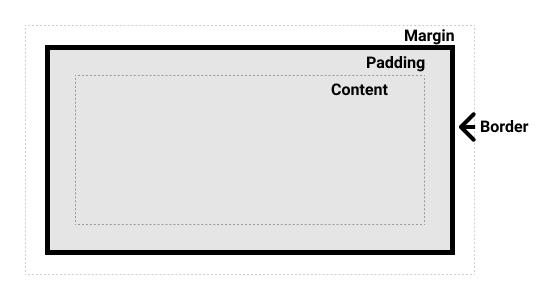
See more at MDN: CSS Box Model
Positioning with CSS
The display properties and box model are primarily concerned with how a given element presents itself in isolation.
The most complex part of the CSS specification is its wide variety of options that describe how elements are positioned relative to other content on the page.
The position property controls how an element's position is determined relative to its parent and the rest of the page:
static: default, element sits in "normal" page flow;top/left/etc. are ignored.absolute: removed from normal flow and placed relative to nearest (non-static) ancestor withtop/left/etc.relative: stays in the normal flow, but can be nudged from its usual spot withtop/left/etc.fixed: removed from normal flow and positioned relative to browser window, stays in place when scrolling.sticky: scrolls normally until it reaches a fixed position (e.g. sticky headers).
See more on MDN: CSS position for examples.
Screen Coordinates
Screen coordinates in computer graphics typically place (0, 0) at the upper left corner, with a Y axis that is inverted from what you may expect.
top: 10px moves the top edge of a positioned element 10 pixels down.
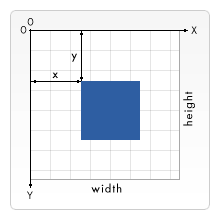
Flexbox & Grid
In the last decade, CSS has evolved two new layout models, display: flex; and display: grid;.
Setting display on a container such as <div> changes how items within that container are positioned.
Many of the old "tricks" are no longer needed as these provide a robust way to define common patterns that have evolved in web design.
Flexbox is a model that allows defining how elements reflow within their parent element.
A minimal flex example, which lays children out in a row and spaces them evenly:
.row {
  display: flex;
  gap: 1rem;                        /* 1rem between items */
  justify-content: space-between;   /* spread along the row */
}
See more at MDN: CSS Flexbox.
Grid does what the name says; it provides a way to create a consistent grid, where a parent element is divided into proportional columns and/or rows.
A minimal grid example, which divides the container into three equal columns:
fr is a "fraction" of the available space. With more than three children, grid wraps them onto new rows automatically; flex needs flex-wrap: wrap to do the same.
See more at MDN: CSS Grid.
Where does the CSS go?
There are three ways to add CSS to your HTML.
The first is typically discouraged. We've seen that we can add style attributes directly to elements. This method forgoes selector rules, applying the specified attributes directly to the element.
Second, an HTML file can contain a <style> element (typically placed in <head>) which contains one or more CSS rules. These rules will apply to the page:
<head>
  <style>
    div#header {
      background: white;
      font-size: 120%;
    }
    div.content { background: blue; }
  </style>
</head>
<body>
    ...
</body>
This is helpful if you're creating a single HTML page, and is also common during development when scaffolding a page's design.
The final, and most common method is to use an external reference via a <link> element placed in the <head>.
<link href="/path/to/file.css" rel="stylesheet" />
This keeps all of the CSS in a separate file which can then be referenced by multiple pages.
Responsive Design
Most webpages are meant to be viewed on devices of all sizes: phones, laptops, tablets, and more. Preparing your page for this takes two steps:
First, be sure your page contains <meta name="viewport" content="width=device-width, initial-scale=1"> in the <head> so mobile browsers don't shrink the page.
Second, use @media queries to set different CSS rules at different browser widths:
:root { --padding: 3rem; }
@media (max-width: 900px) {
   :root { --padding: 2rem; }
}
@media (max-width: 600px) {
   :root { --padding: 1rem; }
}
body { padding: var(--padding); }
This CSS decreases the size of the padding based on device size.
See MDN: Responsive Design for more.
CSS Frameworks & HTML Templates
The Simplest Option
If you want to write HTML & CSS yourself, and have full control, I recommend grabbing normalize.css & test.html from the normalize.css repository.
That will give you a basic HTML page outline, and what we call a "CSS Reset" which gets you the same defaults in all browsers, etc. and provides an even field to build upon.
Using Lightweight CSS Frameworks
The next option would be to use a CSS framework.
The most popular frameworks are Bootstrap & TailwindCSS, but both are quite heavy and hard to use for a beginner. They are also more than you need for a one page site, but come in handy for larger complex applications and sites.
I would recommend a framework that you can download as a single CSS file:
- Simple.css - About as lightweight as you can get. Just a step above normalize.css, giving nicer styling of default elements that you can easily customize further.
- Matcha - A lightweight CSS framework that requires almost no changes to your page.
- Bulma - Quite comprehensive framework with theme support like bootstrap, but can be included with a single CSS file.
Important: Given a choice of installation options favor "CDN" or <link> tag options that allow you to link to the CSS directly. If you see @import or npm/npx I would avoid that for now.
Templates
It is also common to start by picking a template.